Password throttling configuration guide
Configure Password Throttling to block password guessing attacks while keeping legitimate users productive.
Why this matters
Stops brute force attacks from compromising accounts through repeated password attempts
Password Throttling tracks failed login attempts using a rolling time window. When attempts exceed your configured limit within the timeframe, you can either temporarily block further attempts or lock the account until an administrator unlocks it.
Example: With 5 attempts allowed in 5 minutes, a user making 5 failed attempts at 1:00pm is blocked until 1:05pm when the first attempt expires. Successful authentication resets the count to zero.
Prerequisites
Identity Platform release 24.04 or later
Data store added to the Identity Platform
Configured user authentication policy
Configured application integration
Data store configuration
In the Identity Platform, go to the Data Store Summary of the data store connected to the application where you will enable password throttling.
In Advanced Settings, select Bind for Validate User Type.
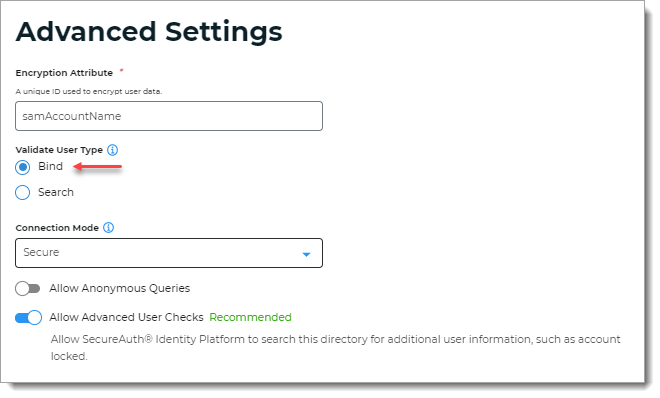
Click Save.
Go to the Data Store Properties for the data store.
Select the Writable check box for Password Throttle.
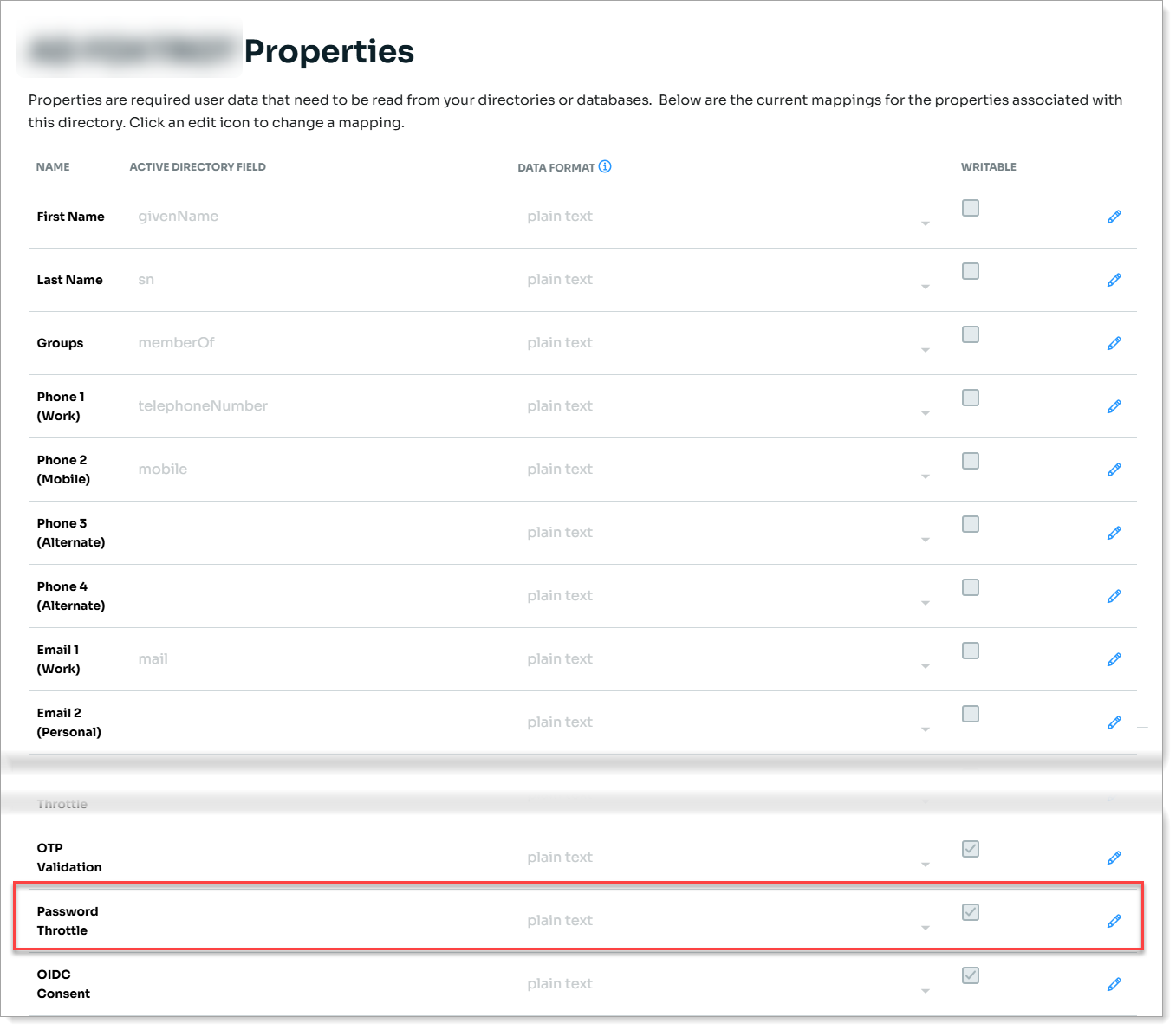
Save your changes.
Application configuration
For a configured application, go to Advanced Settings (formerly Classic Experience).
On the Workflow tab, in the Workflow section, set the following for Password Throttling:
Setting
Instructions
Enable password throttling
Select this check box to enable password throttling.
Only allow [X] failed attempts
Set maximum failed attempts before blocking to prevent password guessing while allowing for user mistakes.
in [X timeframe] for each use
Set the timeframe for counting failed attempts and select minutes, hours, or days.
This configuration specifies the rolling time period before throttling takes effect.
Active Directory integration: Set failed attempts below AD's Account lockout threshold and time value above AD's Reset account lockout counter to prevent conflicts.
Example: If AD Account lockout threshold is 10 attempts and Reset counter is 20 minutes, set Password Throttling to 9 attempts in 21 minutes.
Setting
Instructions
Block password attempts until time limit has expired
Block password attempts until time limit has expired – Prevents further login attempts until the attempt count decreases. Users can try again once time expires without administrator intervention.
Lock user account after exceeding attempts
Lock user account after exceeding attempts – Locks the account completely until an administrator unlocks it. Provides stronger security but requires help desk support.
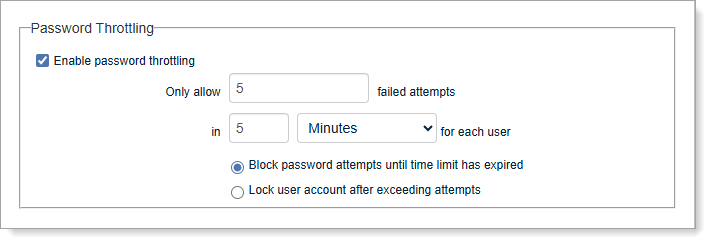
Save your changes.
User workflow when throttling activates
Invalid password → Password does not match message appears.
Maximum attempts exceeded → Exceeded maximum attempts entering password message appears and blocks further attempts.
If blocking enabled → User can retry after time limit expires.
If account lock enabled → Account is Locked message appears, administrator must unlock.
Unlock a user account
Log in the Account Management / Help Desk application and retrieve the locked account.
Confirm the account status shows Status: Account Locked.
You can unlock the user account using either:
Click Unlock.
At the bottom of the page, select the Password throttle check box to clear password attempts.
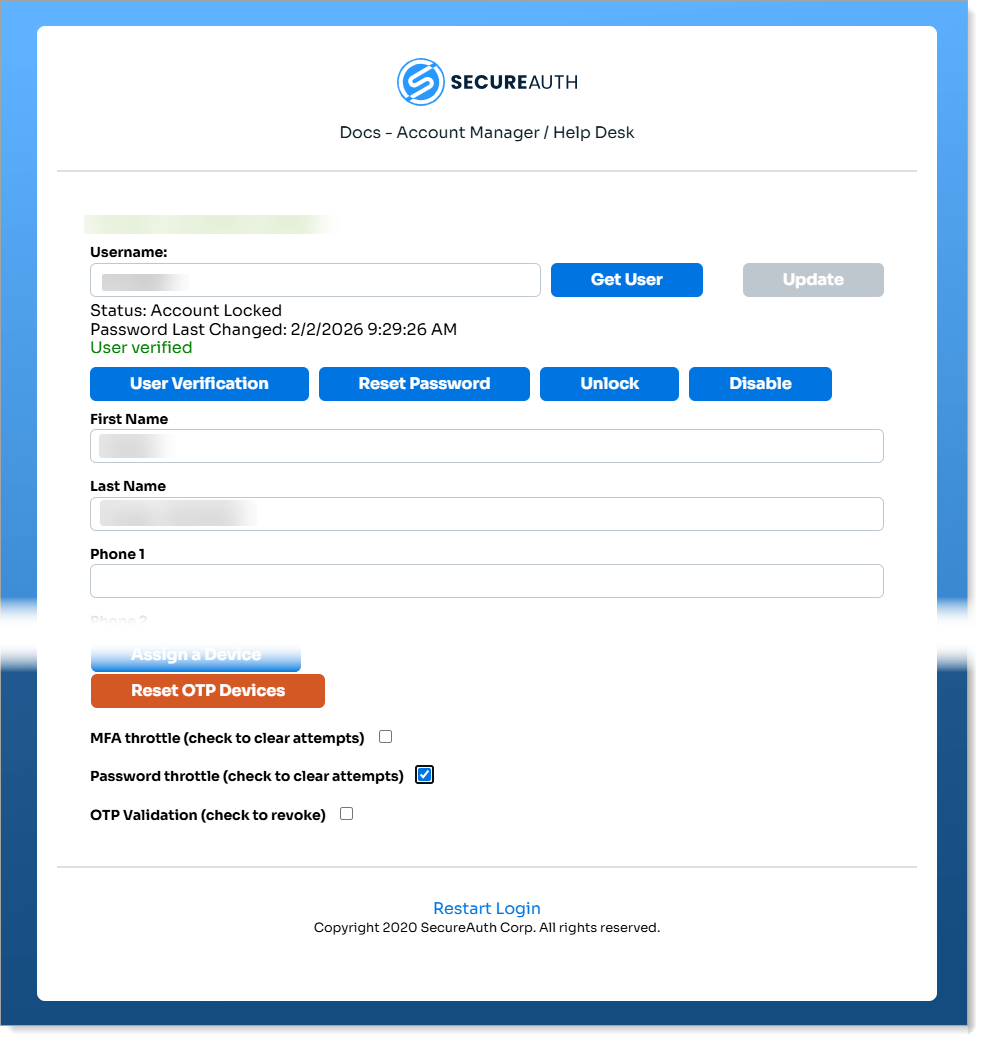
Click Update.